 MuraTalk
Start with your iPhone. Add your own server when you want to take it further.
Get the free public beta
Join MuraTalk’s public beta on TestFlight. Open the invitation on your iPhone and follow Apple’s instructions to install TestFlight and MuraTalk. The beta is free. Share feedback through TestFlight or email us.
1. Start on-device
Use MuraTalk on your iPhone without a server or account. You need iOS 26 or later and an Apple Intelligence-compatible iPhone with Apple Intelligence enabled and its model downloaded. See Apple’s requirements.
- Open MuraTalk, confirm you’re 18 or older, acknowledge the safeguards and accept the terms, then complete or skip the optional profile. Tap the microphone or type a message.
- Don’t tidy your thoughts first. Try rambling: “This weekend’s a mess. I promised I’d help Sam move on Saturday, but I also need to do the groceries, and I wanted a long run at some point. Oh, and I need to pay the electricity bill.” MuraTalk helps you work out a plan and form your to-do list. If the to-dos aren't added, say 'add those to my list'.
- Tap the sidebar button or swipe right to open the menu. Choose My to-dos to review your tasks, or tap a saved conversation to pick it up again. Swipe left to close the sidebar.
- Review remembered facts in Settings → What I remember. To delete a saved conversation, press and hold its title in the sidebar, then choose Delete.
2. Choose a voice
- Go to Settings → Voice, turn on Read replies aloud and select Apple voice.
- Open Apple voice, preview the options and select a voice.
- For more options, tap Get more voices to follow Apple’s download guidance.
3. Connect your own server (optional)
MuraTalk does not provide a hosted service. You can connect a compatible chat endpoint on a private network or VPN. In Settings → Chat, choose Your server, enter the address and key, then tap Test server. In Settings → Voice, choose Apple voice, Your server, or Separate server. Your server uses the same address and key as chat: tap Check combined connection, then Preview server voice. A separate server has its own address and key.
Example 1: Just your iPhone
With This iPhone selected for chat and Apple voice selected for voice, talk through your weekend entirely on your iPhone. Speech recognition, replies, saved thoughts and spoken audio all run locally.
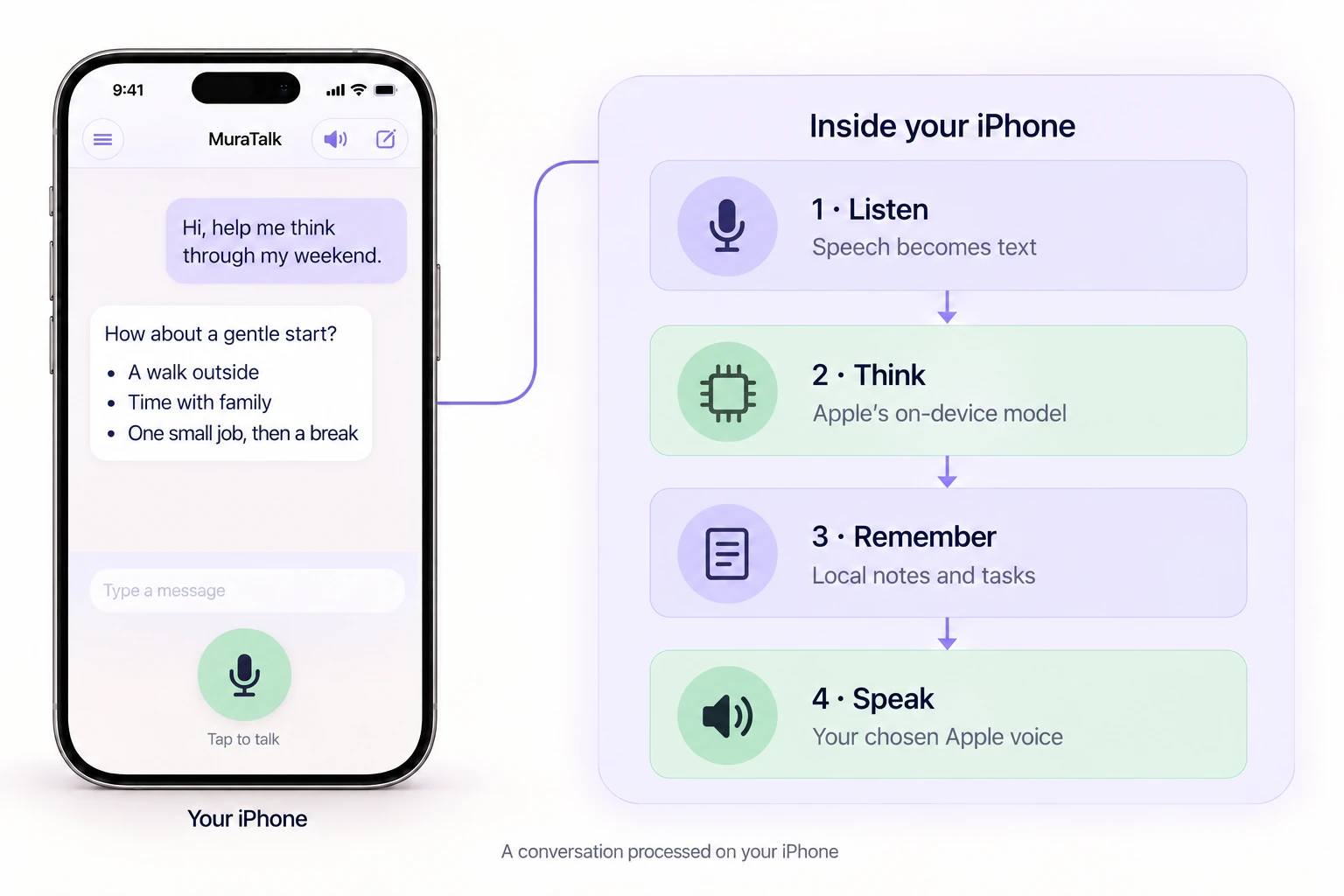
Listen, think, remember and speak—all on your iPhone.
Illustrative conversation · View diagram full size
Online lookups, such as search, weather and maps, can send requests outside your iPhone. Browser searches open only when you tap. See privacy details.
Example 2: Your Mac
An Apple silicon Mac mini or MacBook Pro can run chat on its GPU and a compatible voice model on its CPU. This leaves GPU compute for your replies, while both models share the Mac’s memory. Choose a chat server with streaming and tool support, and a CPU-compatible voice service. The direct route below needs a compatible combined gateway. Keep your Mac awake and reachable over your private network or VPN.
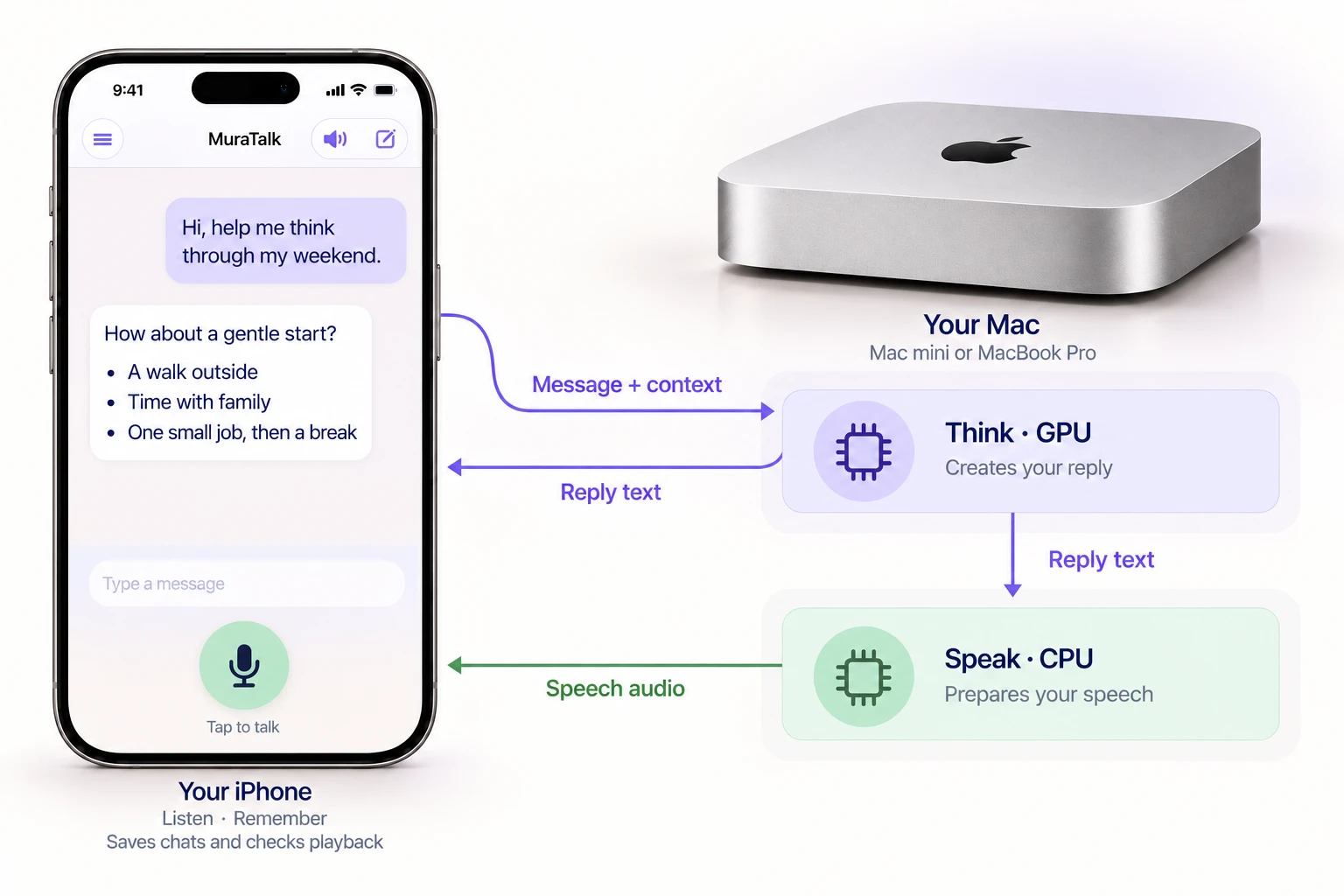
Your iPhone listens and remembers. Your Mac thinks on the GPU and generates speech on the CPU. The iPhone displays the reply and checks matching audio before playback.
Illustrative setup · View diagram full size
Example 3: Your own DGX Spark
A DGX Spark can run chat on the GPU and voice on otherwise underused CPU capacity. Voice then stays off the GPU, leaving its compute for chat. Both still share memory. We recommend the Mia’s AI Lab Qwen 3.8 Flash Next recipe using TensorFold by Ash Hart and contributors. The recipe sets up chat; add a CPU voice service separately.
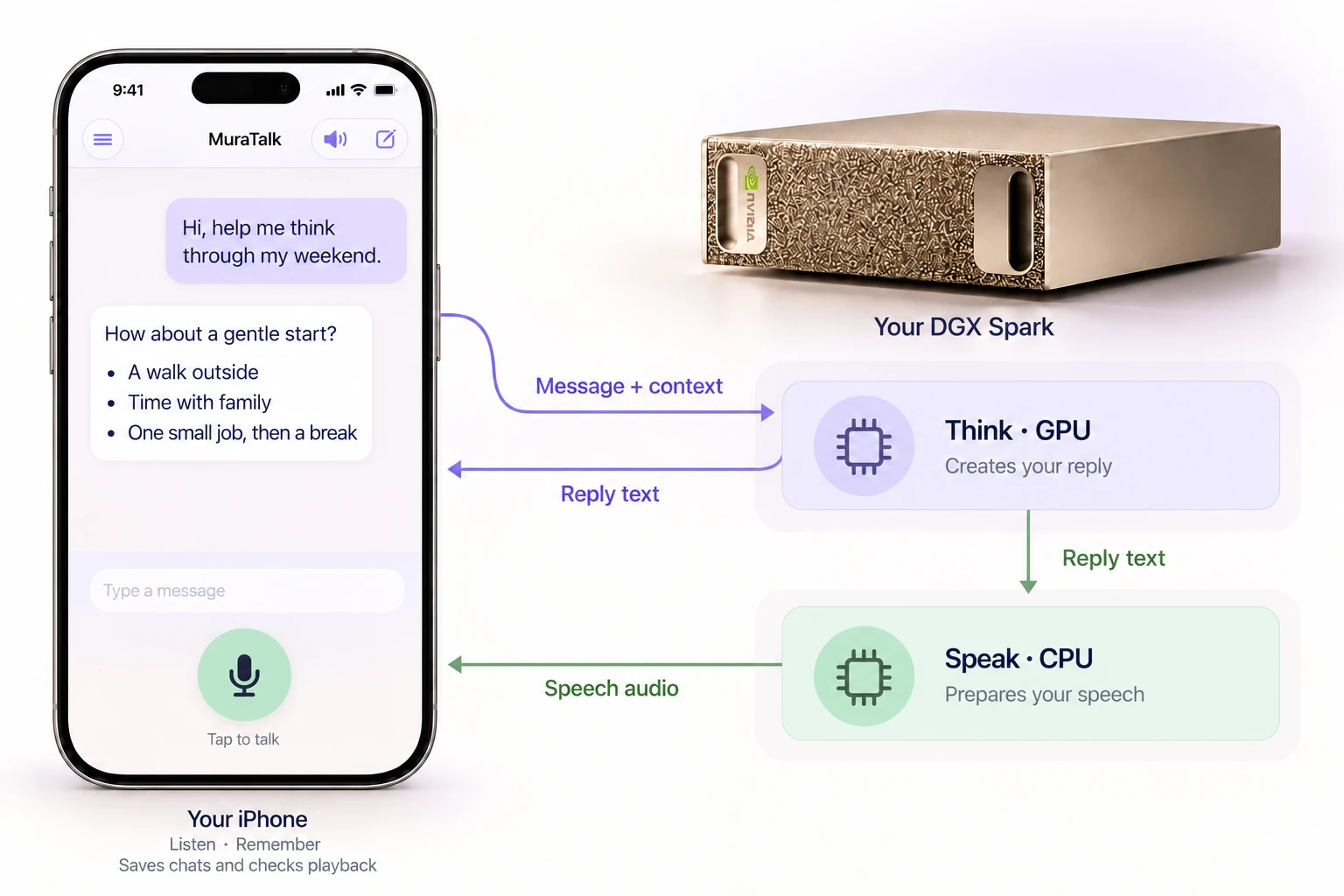
Your iPhone listens and remembers. Your Spark thinks on the GPU and generates speech on the CPU. The iPhone displays the reply and checks matching audio before playback.
Illustrative conversation · View diagram full size